
Plan your day
Build your schedule of customer visits for a given day, so they show up on your agenda ready to start.
Before you start
Section titled “Before you start”- You need the
visits:visits:planning/*permissions (create, edit, and related planning scopes). - You can only plan for today or a future date — past dates are not allowed.
- You can have only one plan per day.
- Once a day’s date has passed, that plan is locked — no more edits, status changes, or deletion.
- Open visit planning.
- Pick the date (today or later). You are the default assignee for your own plan.
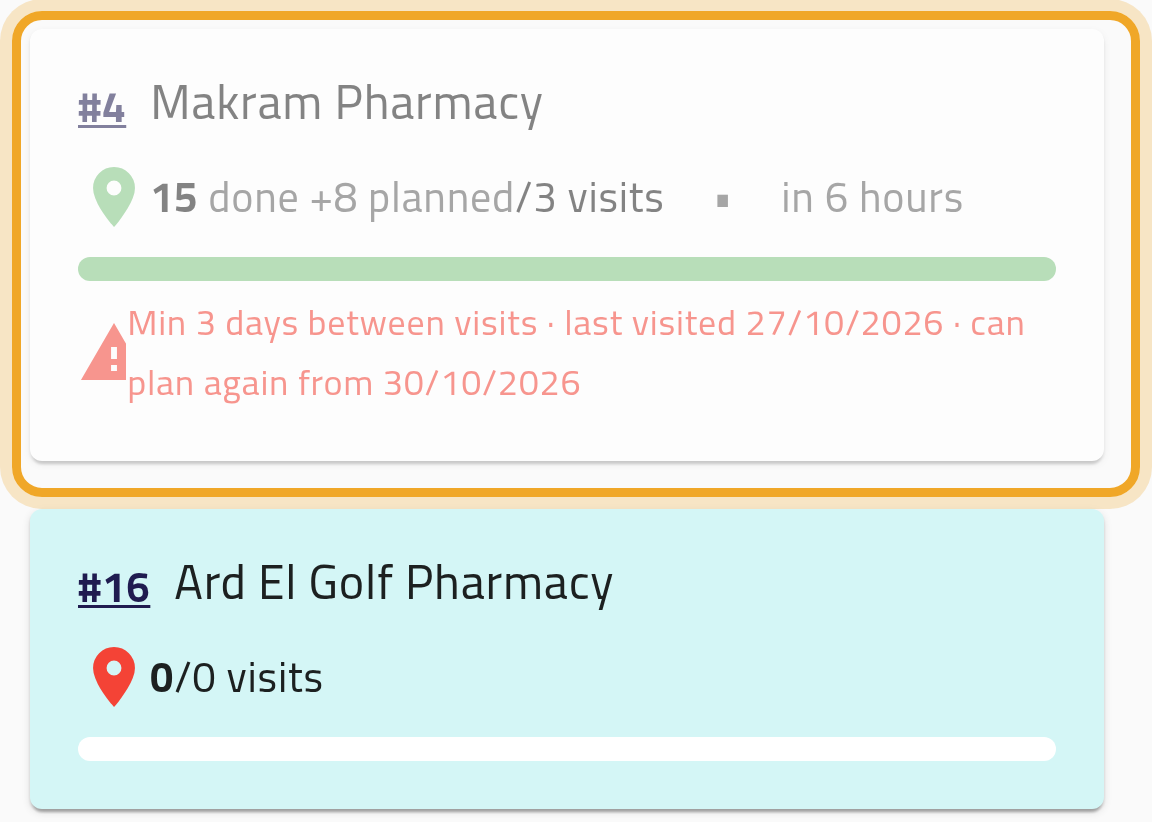
- Add customers — up to 100 per plan. For each one you can optionally set a visit template and a time of day. A customer visited too recently under your workspace’s re-visit rules carries a note — “Min N days between visits · last visited date · can plan again from date” — and, if your workspace blocks early re-visits, is greyed out and can’t be added.
- Save.
- If you hold both the planning approve and edit permissions, your plan is approved automatically. Otherwise, a manager needs to approve it before the visits appear as plans you can start.
What can go wrong
Section titled “What can go wrong”A customer is greyed out and can’t be added
Section titled “A customer is greyed out and can’t be added”Your workspace enforces a minimum number of days between visits to the same customer, and this customer was visited too recently. The note under the customer says when you can plan them again. If your workspace only warns, the customer can still be added, but the visit will need your manager’s approval.
Your plan is stuck awaiting approval
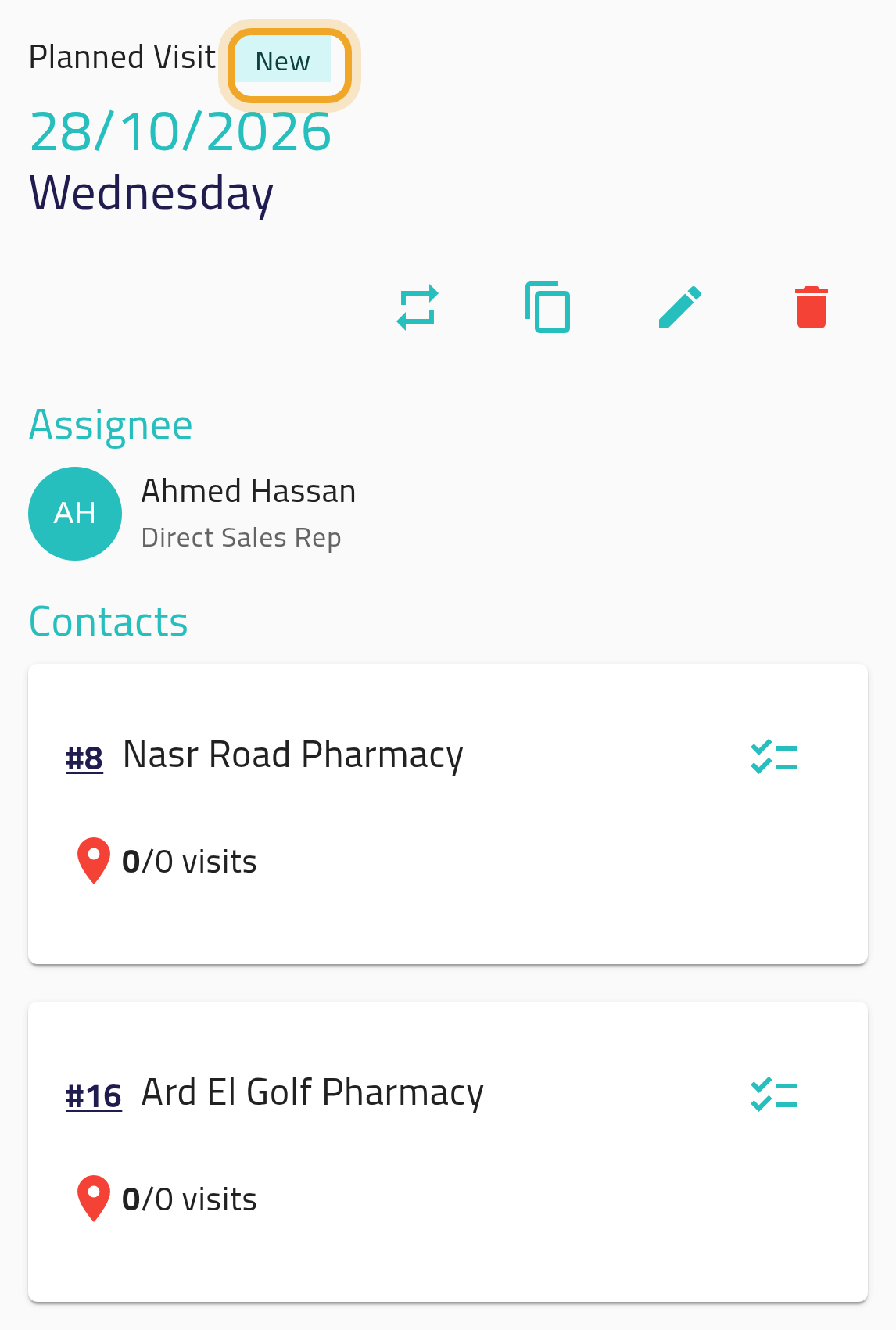
Section titled “Your plan is stuck awaiting approval”If you don’t hold the planning approve permission yourself, someone with that permission needs to approve your plan before its visits appear as start-able plans on your agenda.
Saving fails because a template isn’t available for a customer
Section titled “Saving fails because a template isn’t available for a customer”The template you set on a visit must be one your role may use for that customer. If it isn’t, saving is refused and the message names the template, the customer and the role. Pick another template for that visit, or leave the template empty.
You can’t edit a plan for a date that’s already passed
Section titled “You can’t edit a plan for a date that’s already passed”Once the date is in the past, the plan locks completely — you cannot add, remove, or replace customers on it anymore.
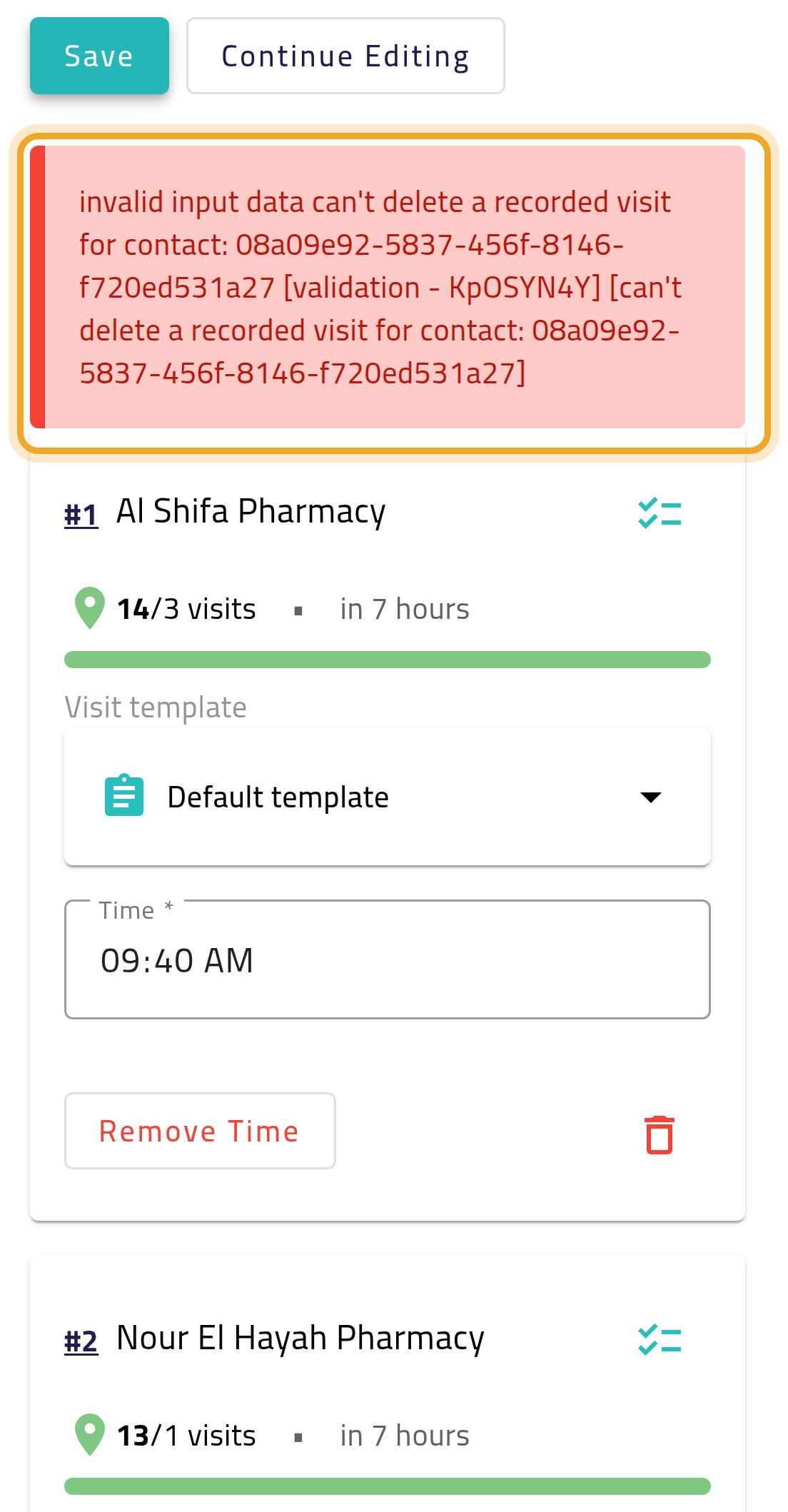
Saving fails after you remove a customer you’ve already visited
Section titled “Saving fails after you remove a customer you’ve already visited”The plan editor lets you remove any customer, but if you’ve already recorded that customer’s visit, saving the plan is refused with a technical message. Put the customer back and save again — you can only remove customers whose visits haven’t happened yet.