

Take a collection during a visit
Record cash or a cheque you collect from a customer while you are with them. The collection is created in one step and linked to the customer and the address you collected it at.
Before you start
Section titled “Before you start”- You need the
sales:collections/createpermission. - To earmark the collection against a sales order, you also need the
sales:collections:accounting/earmarkpermission, and your workspace must link collections to accounting automatically on create — otherwise the sales-order picker does not appear. - Your workspace may require you to be at the customer’s location to collect — if location verification is on, the app checks your position against the customer’s address.
- Open the quick-add menu and choose New Collection (or start from the customer in your agenda).
- The customer is preset from the visit. Choose the address you are collecting at.
- Enter the amount and the method — cash or cheque. Cheque asks for the cheque number and due date.
- You can earmark the collection to one of the customer’s sales orders. If your workspace uses vaults, pick your vault — it’s required. Optionally add a code or note.
- Choose Save. A “Collection created successfully” confirmation appears and links to the new collection.
What can go wrong
Section titled “What can go wrong”Location verification fails: “too far from the specified location”
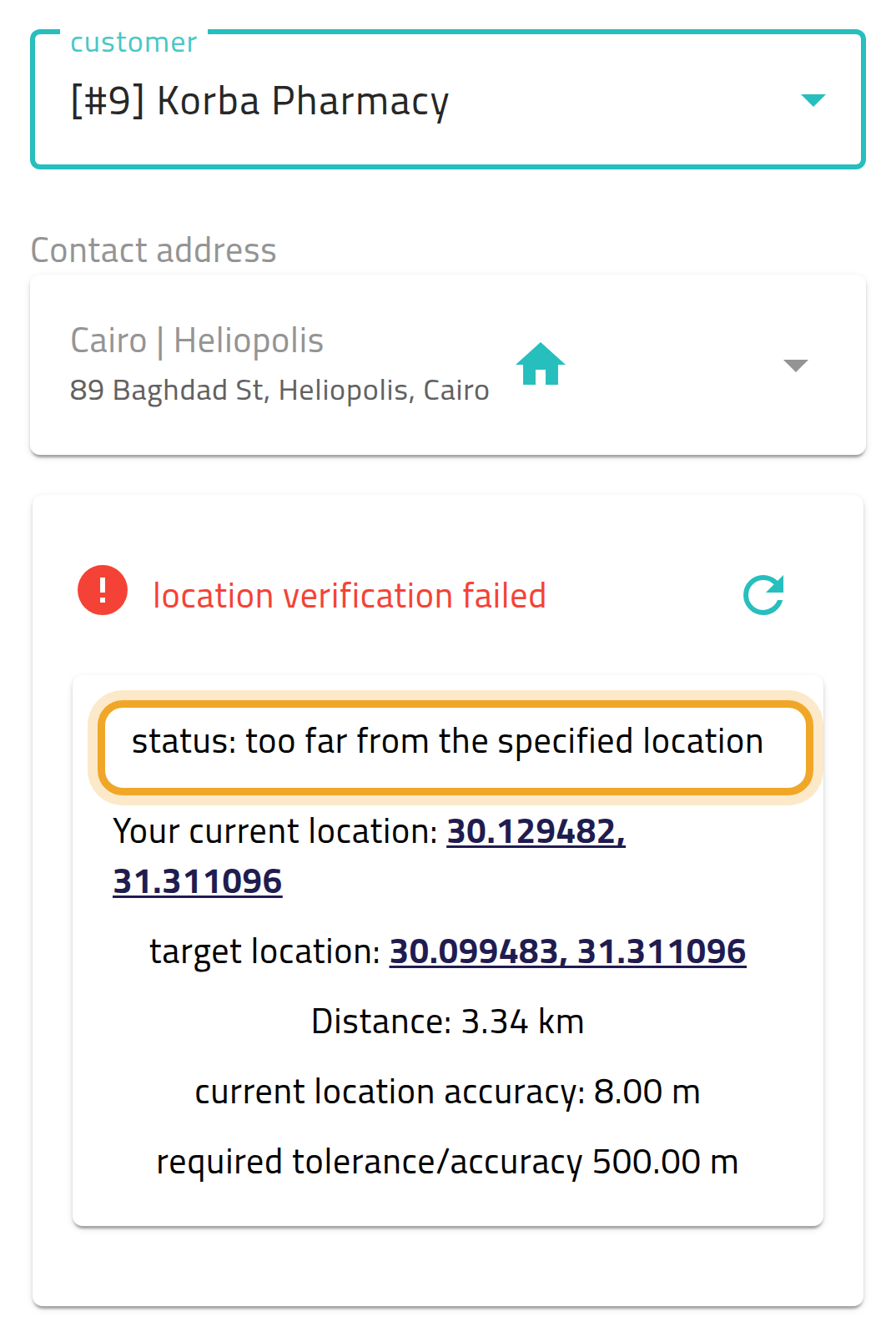
Section titled “Location verification fails: “too far from the specified location””Your workspace requires you to be near the customer’s address to collect, and you’re further away than it allows — the screen shows your distance and the tolerance. Move closer and try again, or use the bypass option if your workspace allows one.
Location verification fails: “low accuracy”
Section titled “Location verification fails: “low accuracy””Your device could not get a precise enough position. Try again in an area with a better signal, or wait for GPS to settle.
Location verification fails: “customer location not set”
Section titled “Location verification fails: “customer location not set””The customer’s address has no map location, so your position cannot be checked. Ask your administrator to add one, or use the bypass option if offered.
No prompt at all, and Save just proceeds
Section titled “No prompt at all, and Save just proceeds”On web, when your browser cannot get a device location, the app shows a warning banner but does not block you — Save goes through without an extra confirmation.
An earmarked collection will not post to the customer’s account
Section titled “An earmarked collection will not post to the customer’s account”The sales order you earmark must already be invoiced to the same customer. Until it is, posting the collection to the customer’s account is refused. If an earmarked order is later deleted, cancelled or split, the earmark is released and the money settles against the customer’s oldest open entries instead.